
Applicable to Game Version v1.2.33 and above.
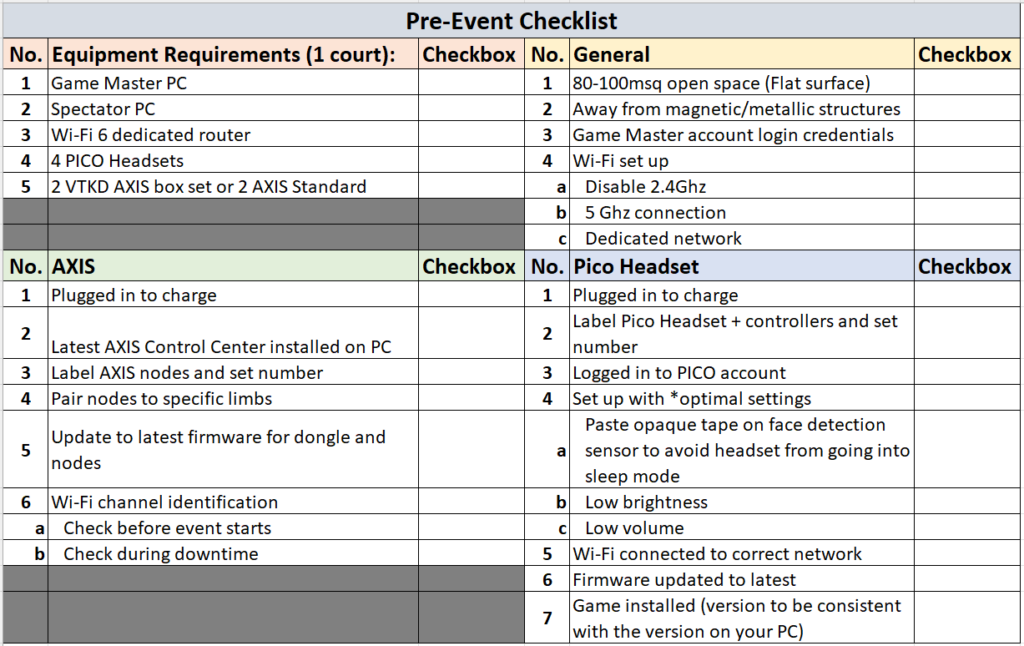
1. Creating Game Room (GM only)
a. Ensure the PC is connected to the internet (Wi-Fi or wired).
b. Open the “VTKDUPlayer” application that can be found on your desktop.
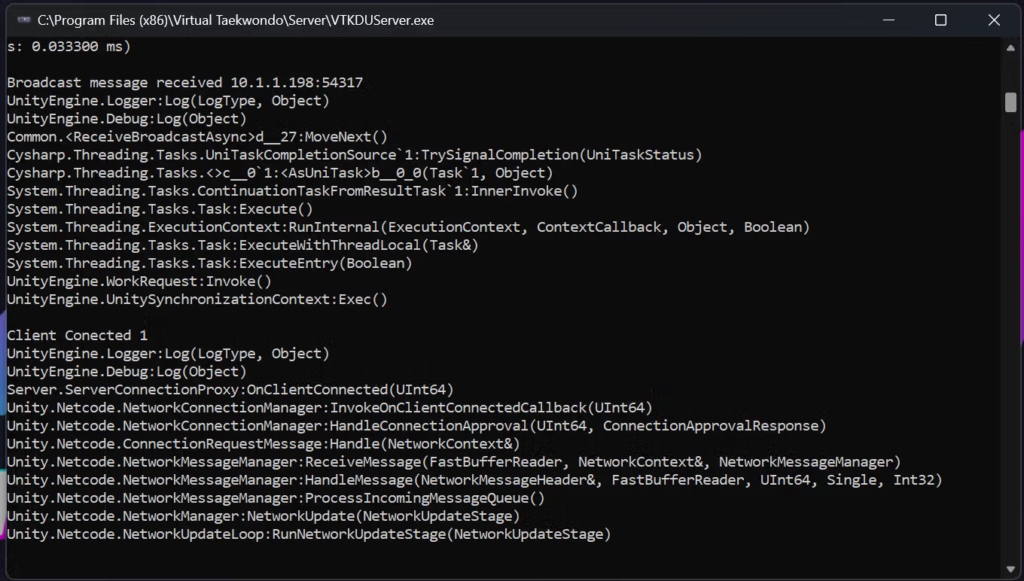
A game server will automatically start in the background (DO NOT close this window when the game is running).
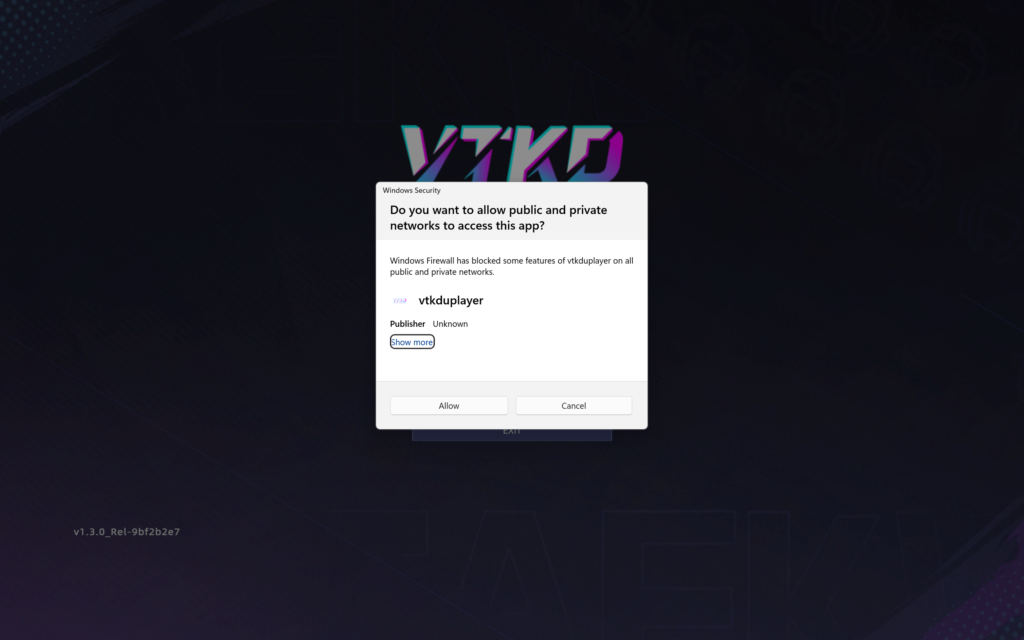
If it is the first time the VTKD application is installed on your PC, allow the Windows Security pop up.
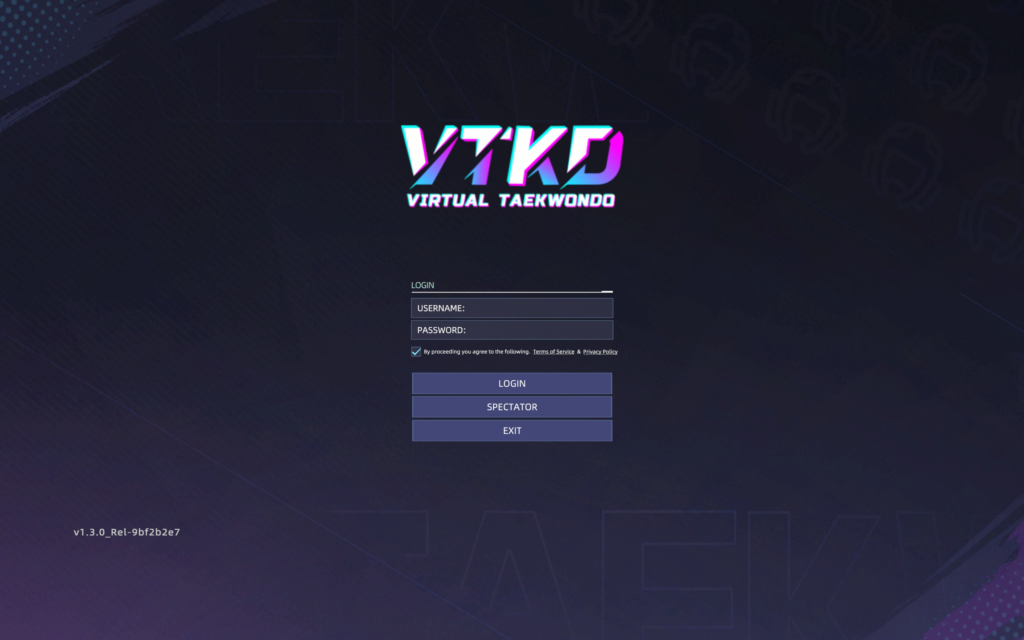
c. Read the Terms of Service and Privacy Policy before ticking the checkbox, followed by keying in your credentials and ‘LOGIN’.
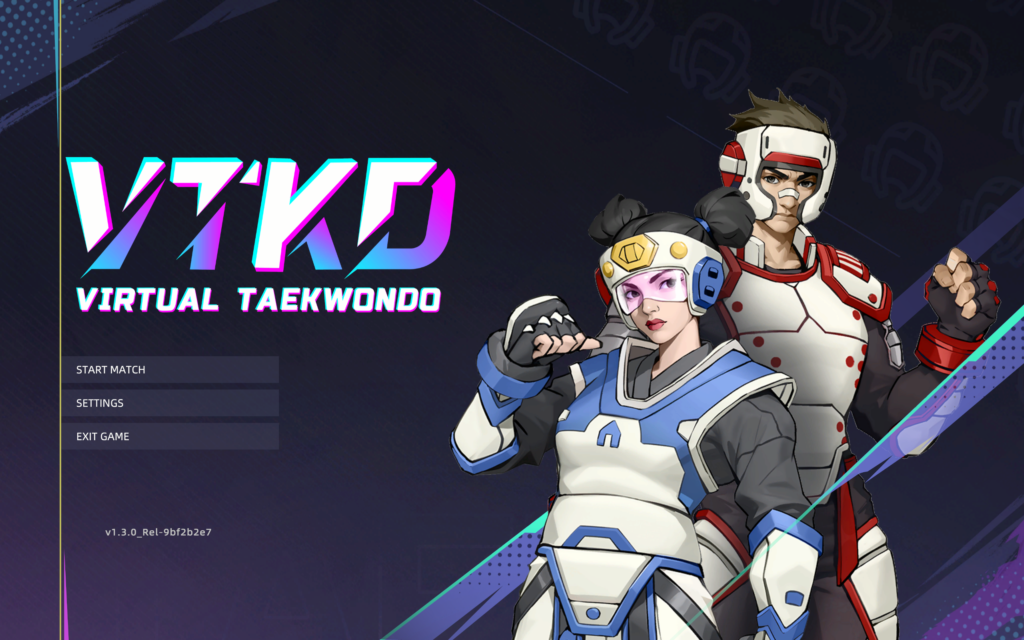
d. On the main menu, click on ‘START MATCH’.
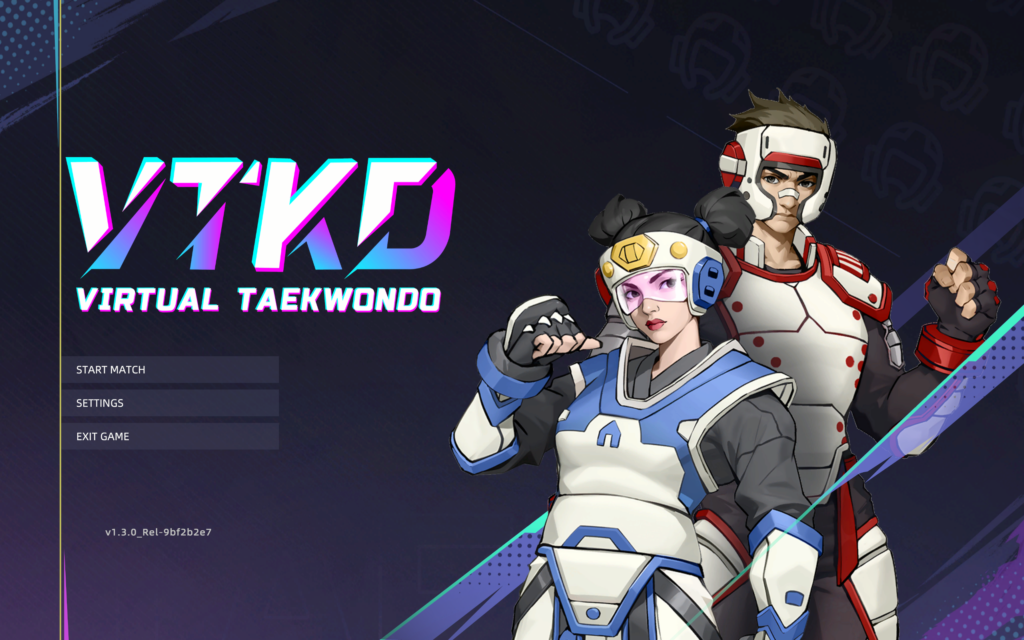
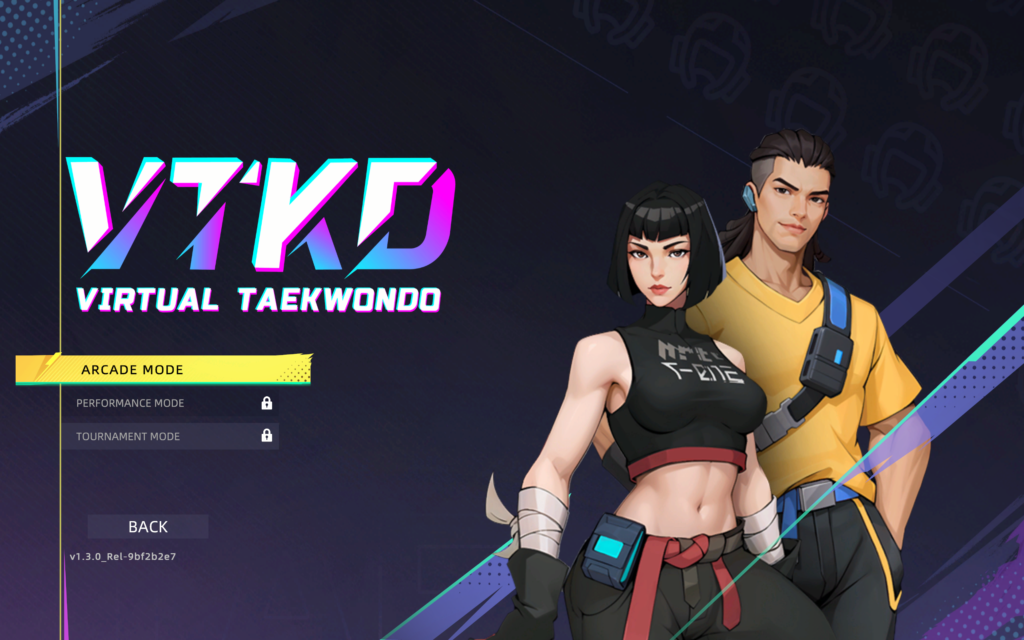
e. Select a game mode.
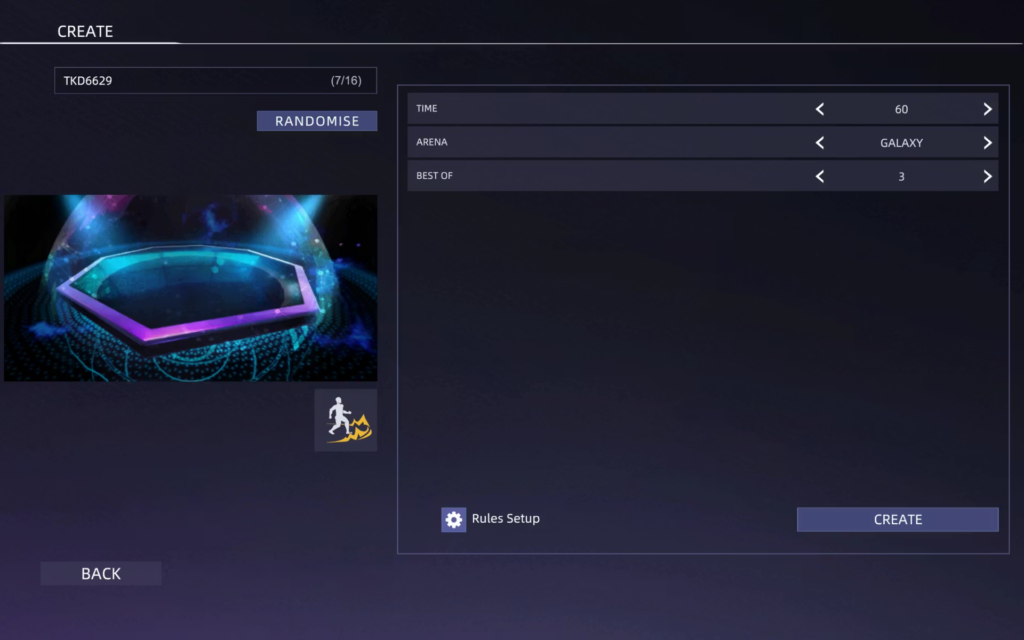
f. Amend room setup as needed and click on ‘Create’.
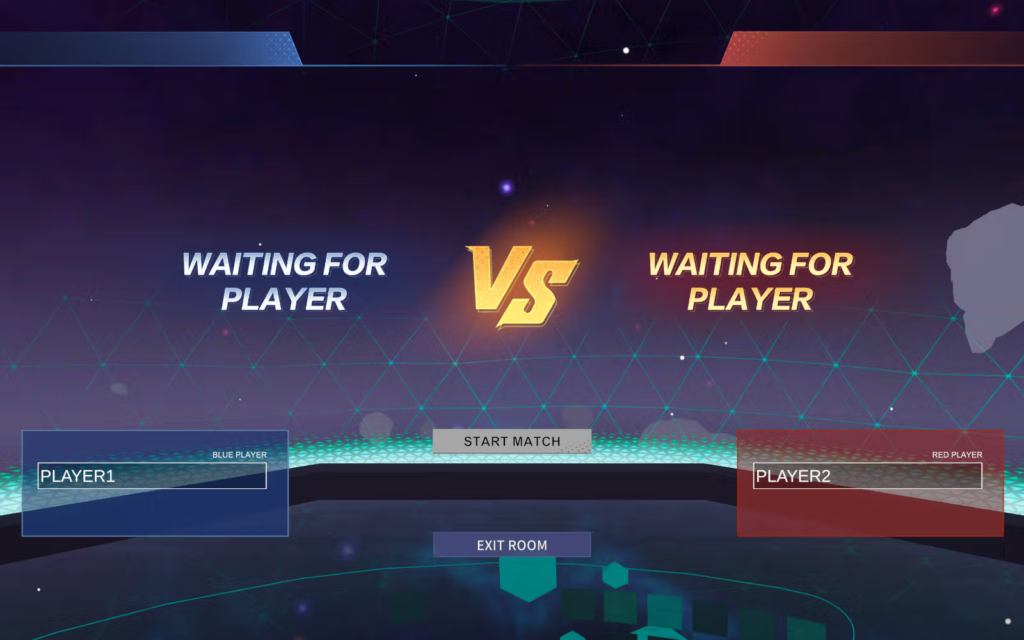
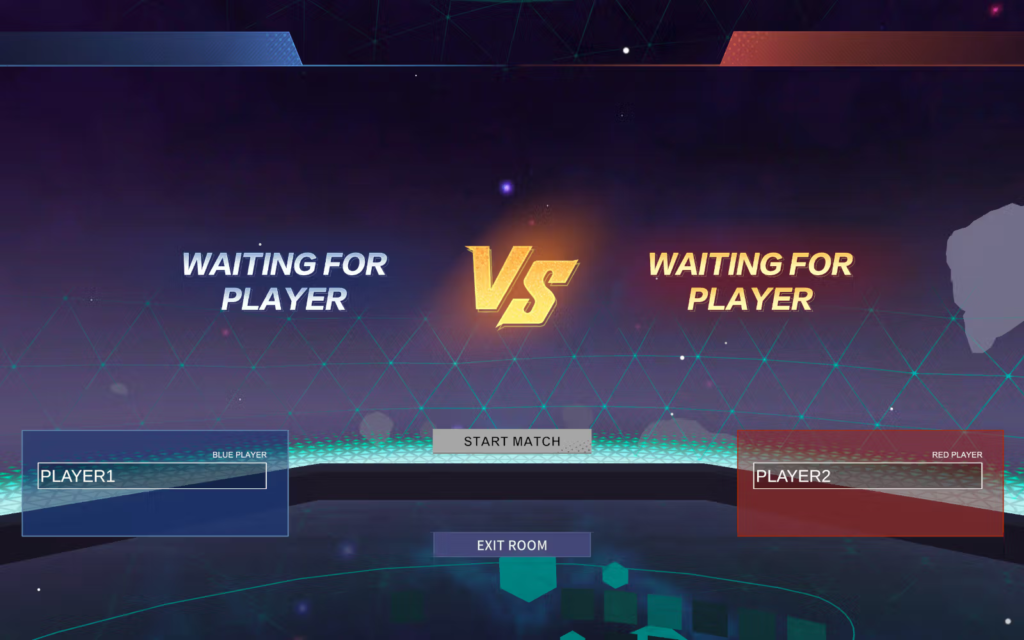
g, Once the room is created, Players can now join the room (If the Red player joins the room first, remember to swap the players position).
Video reference:
2. Joining Game Room
Note before proceeding:
- Make sure there is sufficient space.
- Make sure you have drawn the custom boundary on.
- Make sure the AXIS receiver (dongle) is connected to the VR headset.
- Make sure all (5) AXIS nodes are worn at the correct placements on the body.
Players with VR headsets
- Startup your PICO VR headset and make sure to connect it to the same WiFi as the Game Master.
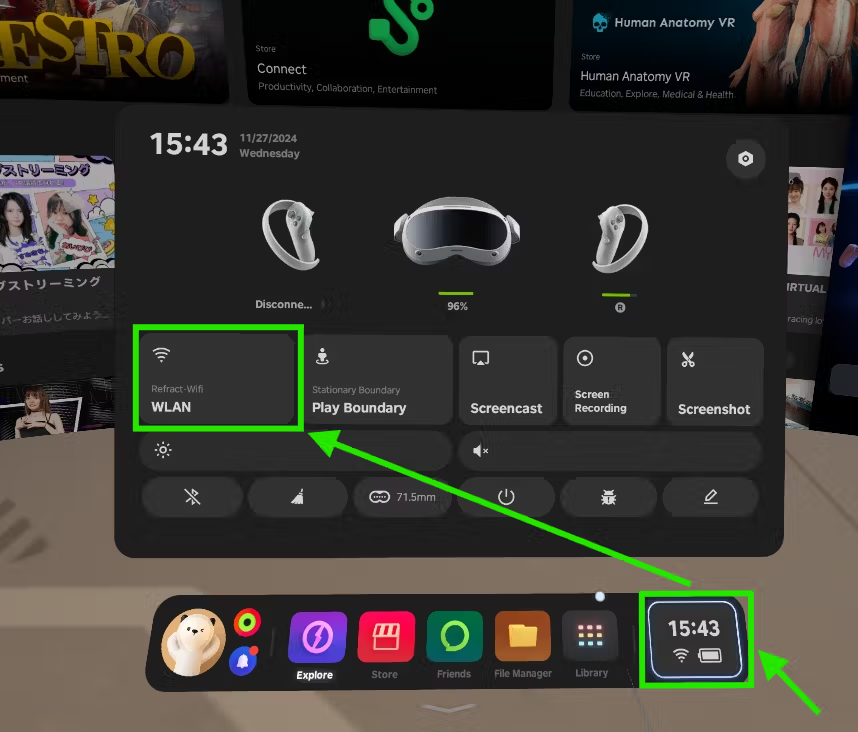
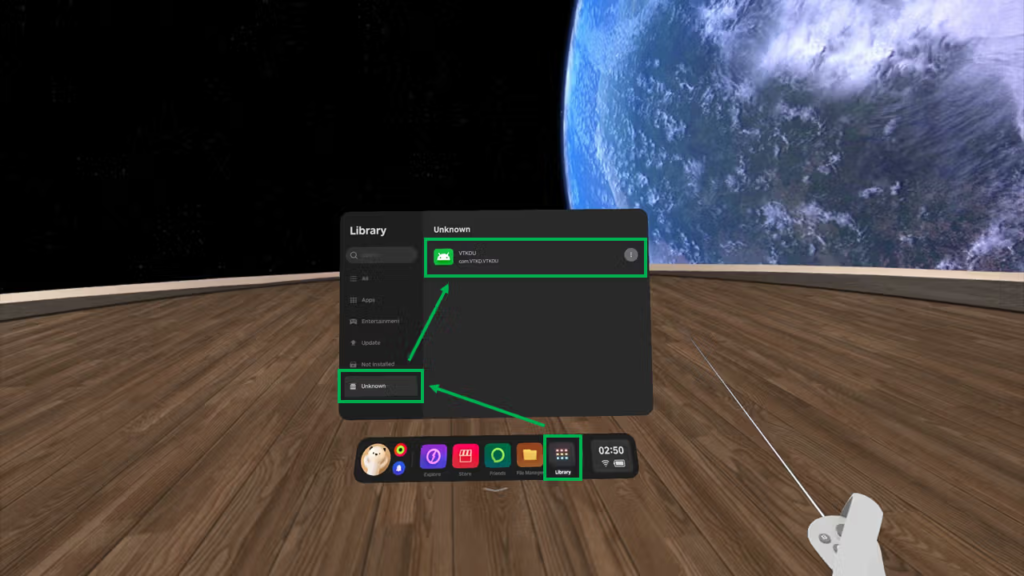
- Once the WiFi is connected to the correct network, go to ‘Library’ -> ‘Unknown’ -> ‘VTKDU’
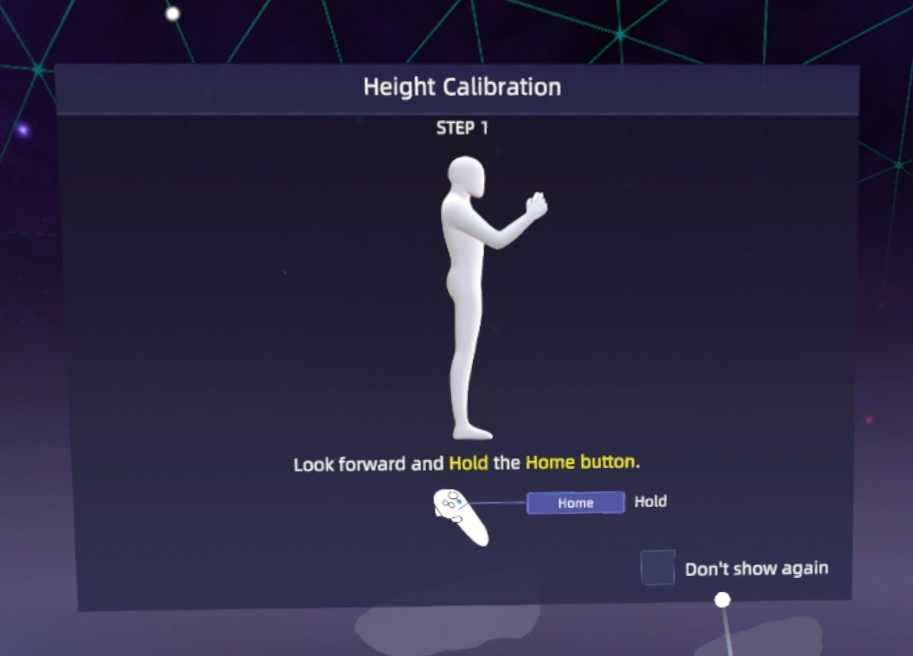
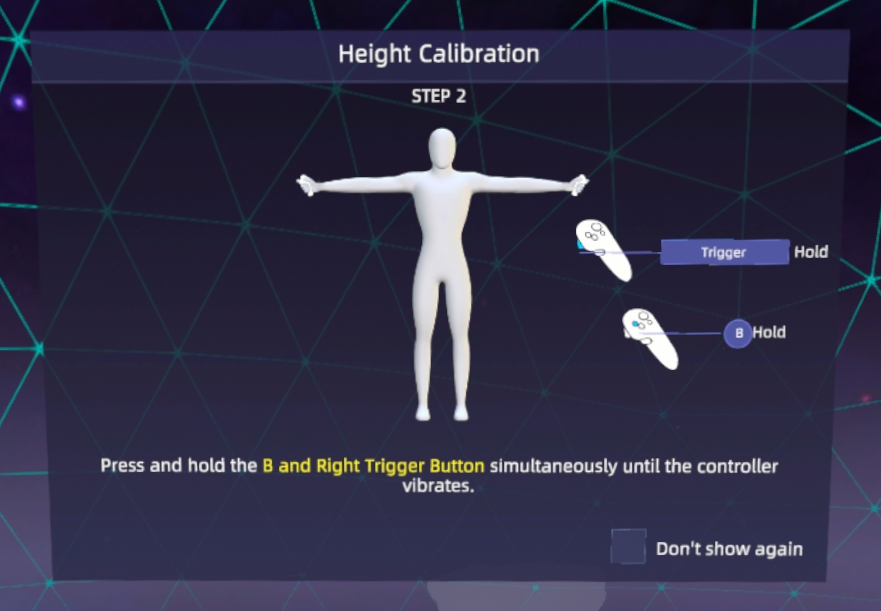
- When the game launches, you are required to do a calibration.
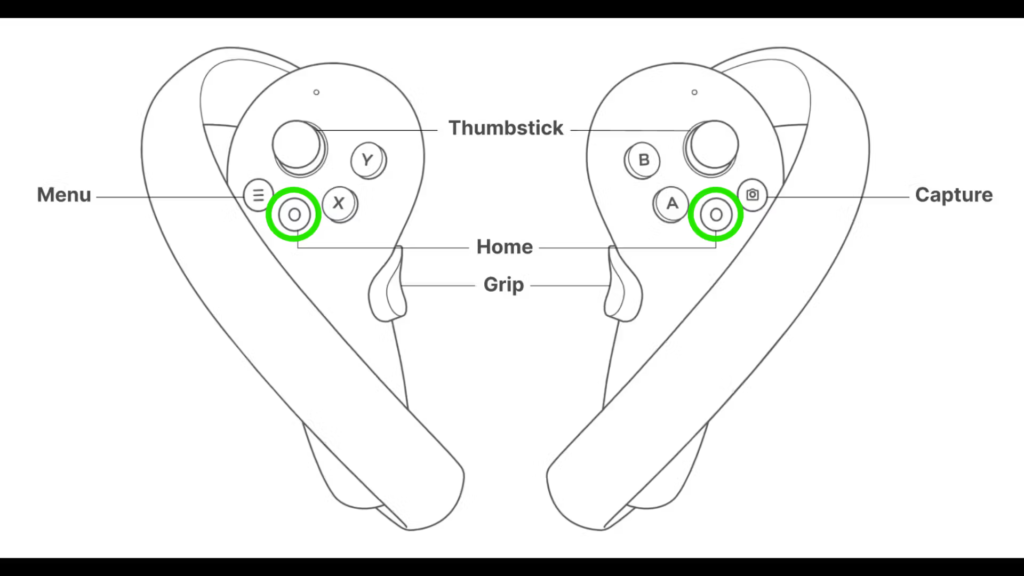
Step 1: Look forward and hold the home button for 2 seconds.
Step 2: On the right-hand controller, press and hold the B and Trigger button until the controller vibrates.
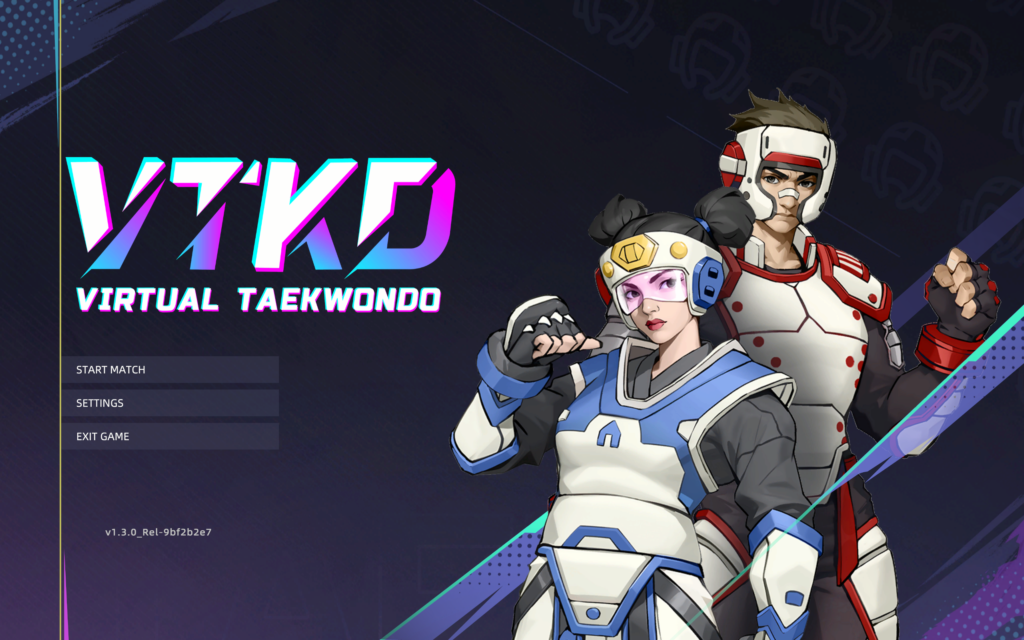
On the Start screen, click on ‘LOGIN’.
- On the Menu screen, click on ‘START MATCH’.
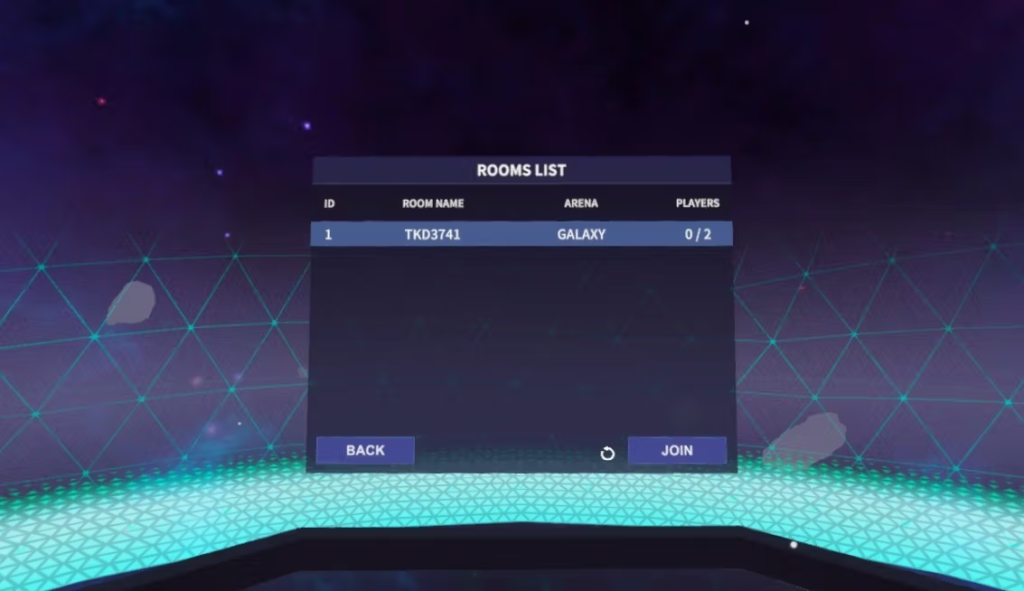
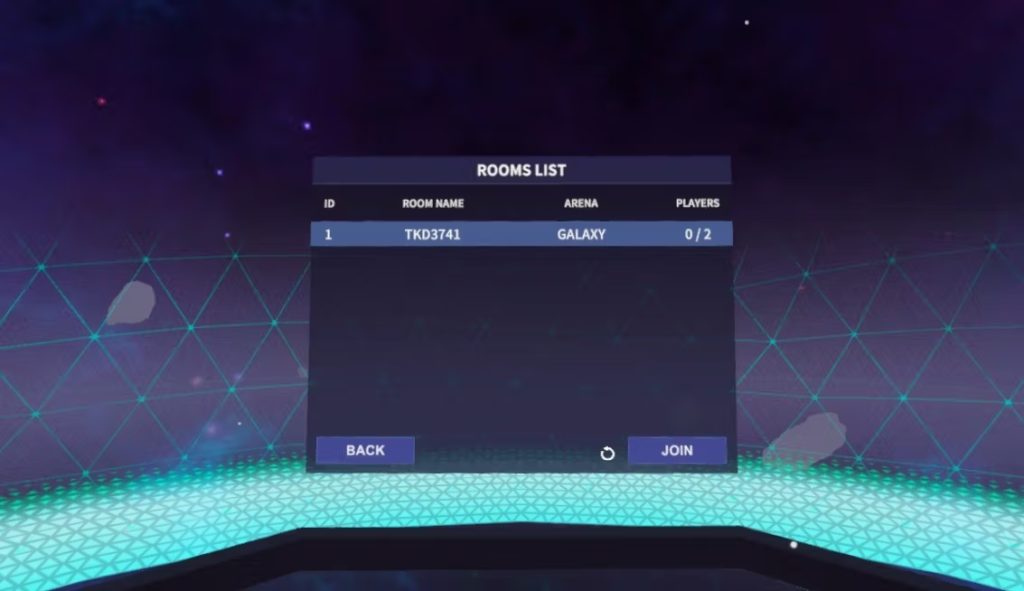
e. On the Rooms List, select the room created by GM and click ‘JOIN’.
Click on the ‘REFRESH’ button if you do not see a room.
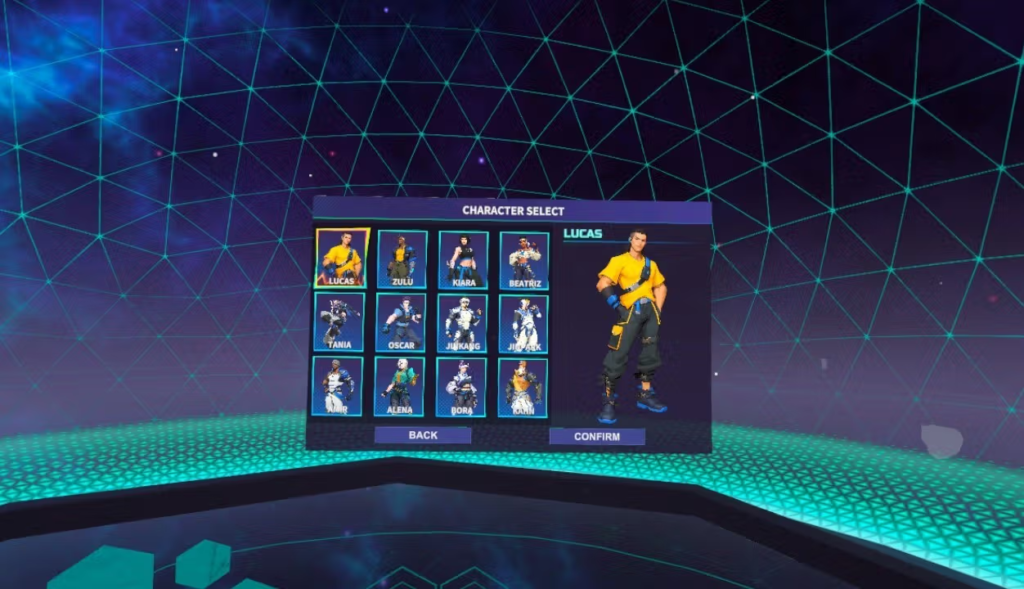
f. Select your character and click on ‘CONFIRM’.
Video reference:
3. In-Game Calibration (VR Headset + AXIS)
Note before proceeding:
- Make sure you have drawn the custom boundary and already joined a game room; you should be in the Waiting room for this section.
- Make sure you are in the passthrough mode, where you can see both your physical legs and avatar legs. If you only see your avatar legs, you can switch to passthrough mode by pressing the [A] button on the right-hand controller.
- Stand on the start point marked with the arrow. The starting point must be set 1m from the middle of the play area.
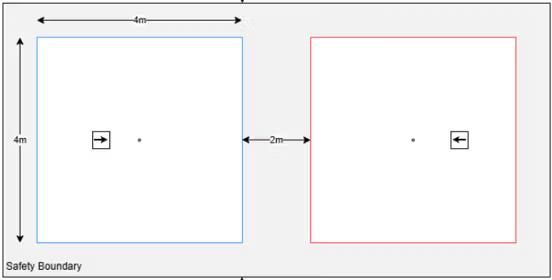
- Recenter VR view by looking forward and then holding on to the ‘Home’ button on either controller for 2 seconds.
- Do a T-pose with your feet put together.
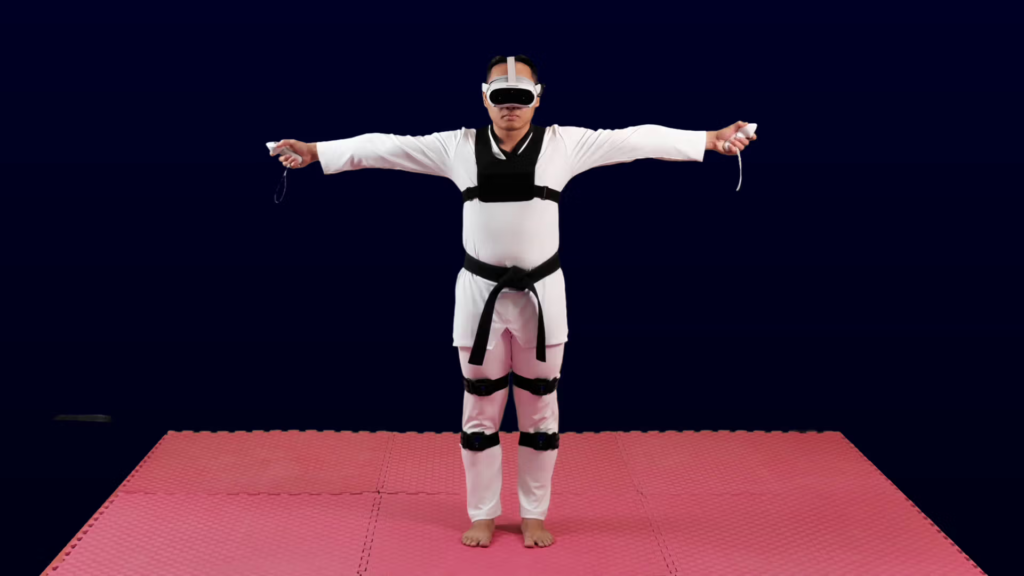
On your right-hand controller, press and hold the ‘B’ + trigger button until the controllers vibrate.
Note: The offset between the avatar legs (in VR) and their physical legs should be no more than 1 foot inward or outward. Any alignment with an offset greater than 1 foot should be treated as unacceptable.
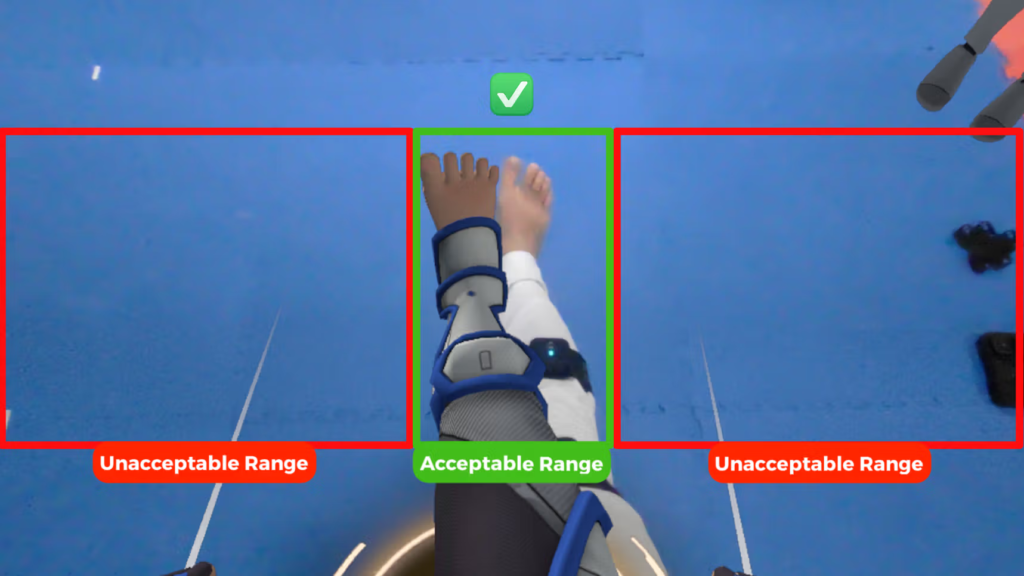
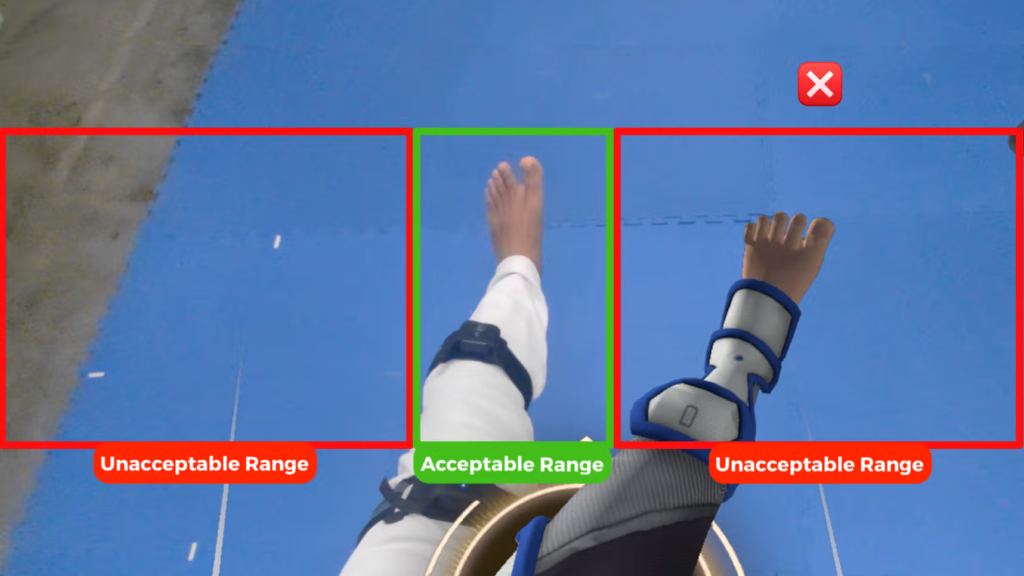
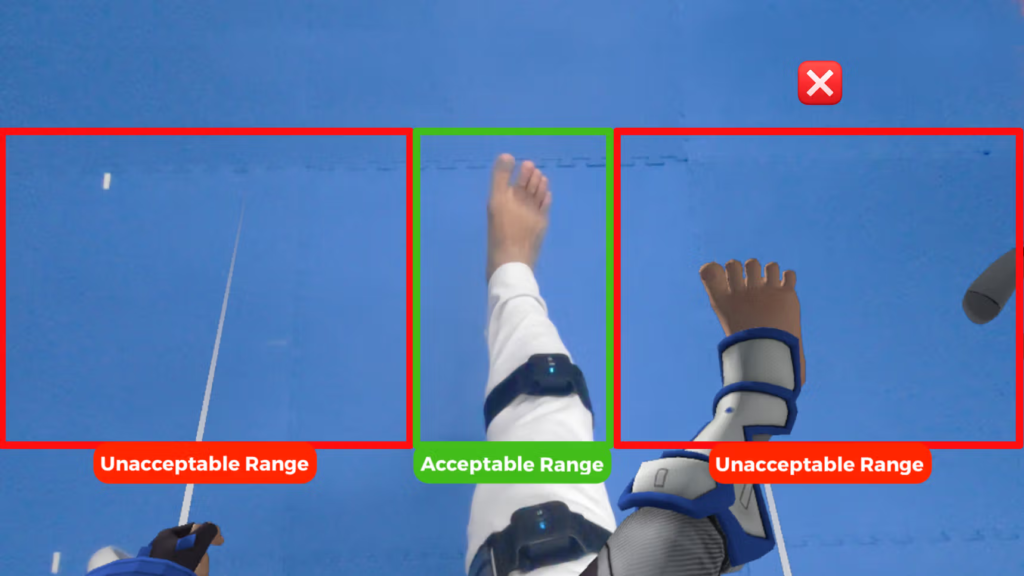
- During a match, if alignment of the limbs are off, there is no need to re-adjust the straps. Simply re-do the In-Game Calibration (T-pose and hold down both triggers) until you feel a vibration) and proceed as per normal.
Spectator PC
- Ensure the PC is connected to the same internet as the Game Master.
- Open the “VTKDUPlayer” application that can be found on your desktop.
- Read the Terms of Service and Privacy Policy before ticking the checkbox, followed by ‘SPECTATOR’ (Spectator does not require login credentials).
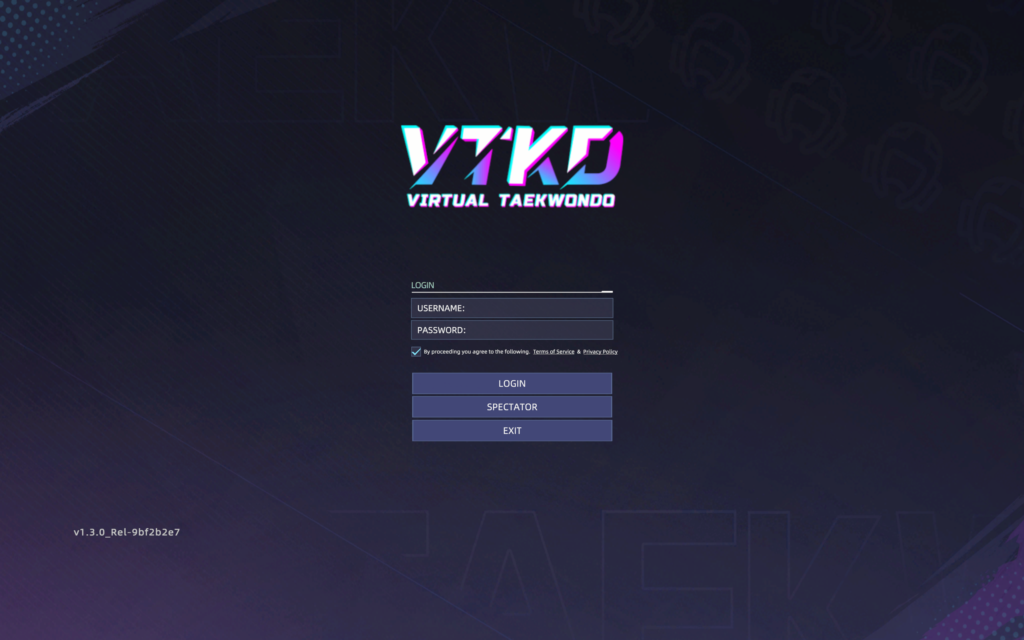
d. Click on ‘START MATCH’.
e. On the Rooms screen, select the room created by GM and click ‘JOIN’.
Click on the ‘REFRESH’ button if you do not see a room.
f. Once you have joined the room and the players are ready, the GM will begin the match.
Video reference: